Model Attribution
The Model Attribution section allows new properties to be added to IFC objects.
Attribution can also be rule-based, meaning that mappings between different classification systems can be implemented using this functionality.
Attribution definitions are stored within the project. This allows them to be executed repeatedly on models, for example when new model revisions are uploaded and the existing definitions should be applied automatically.
Definitions are organised into attribution groups, which can be used, for example, to assign properties to different models or contexts.
Creating an Attribution Group
The first step is to create an attribution group, which combines individual attribution rules.
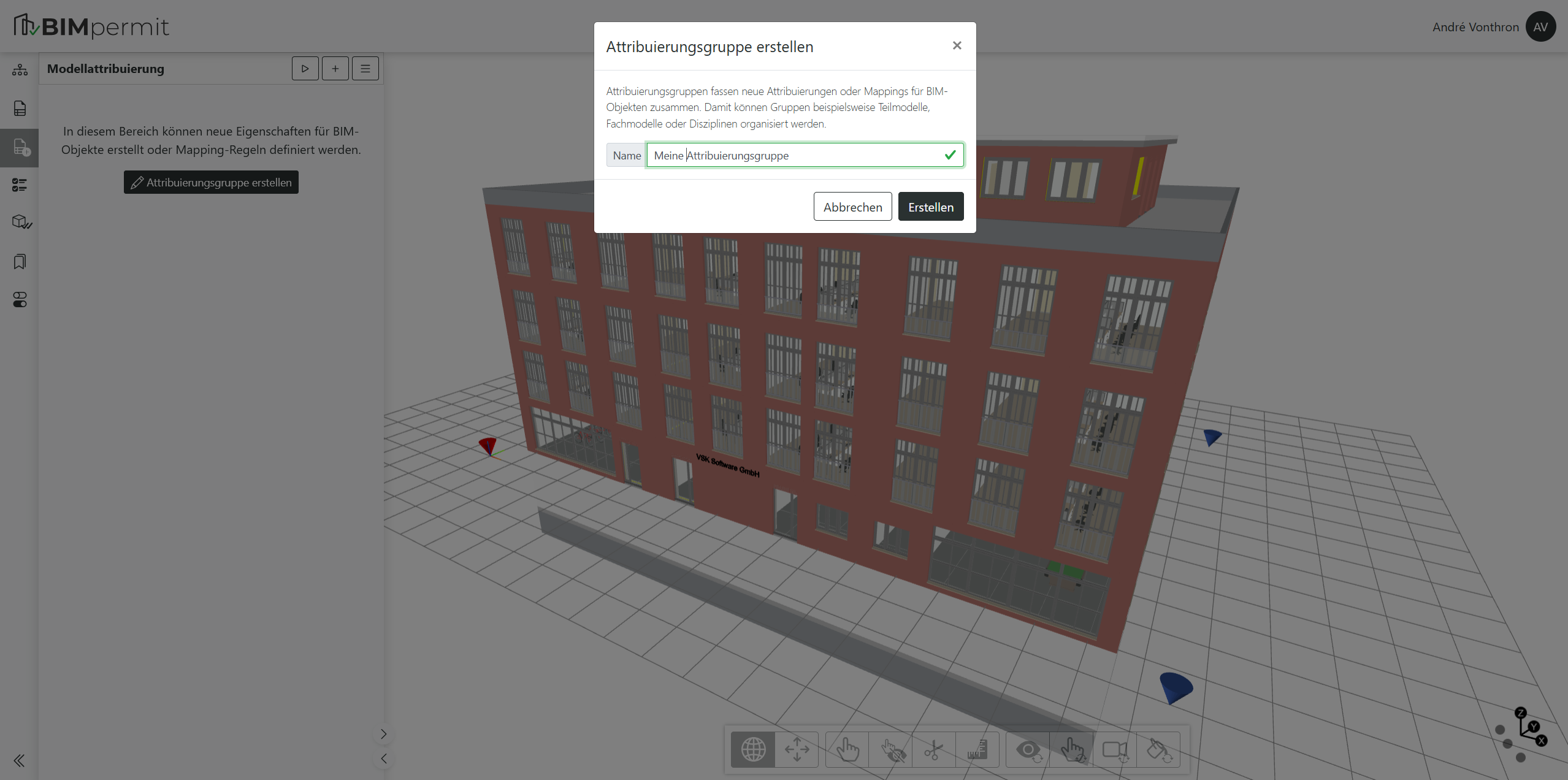
This can be done using the "Create Attribution Group" button or the plus button in the header. A dialogue will prompt you to enter a name for the attribution group.
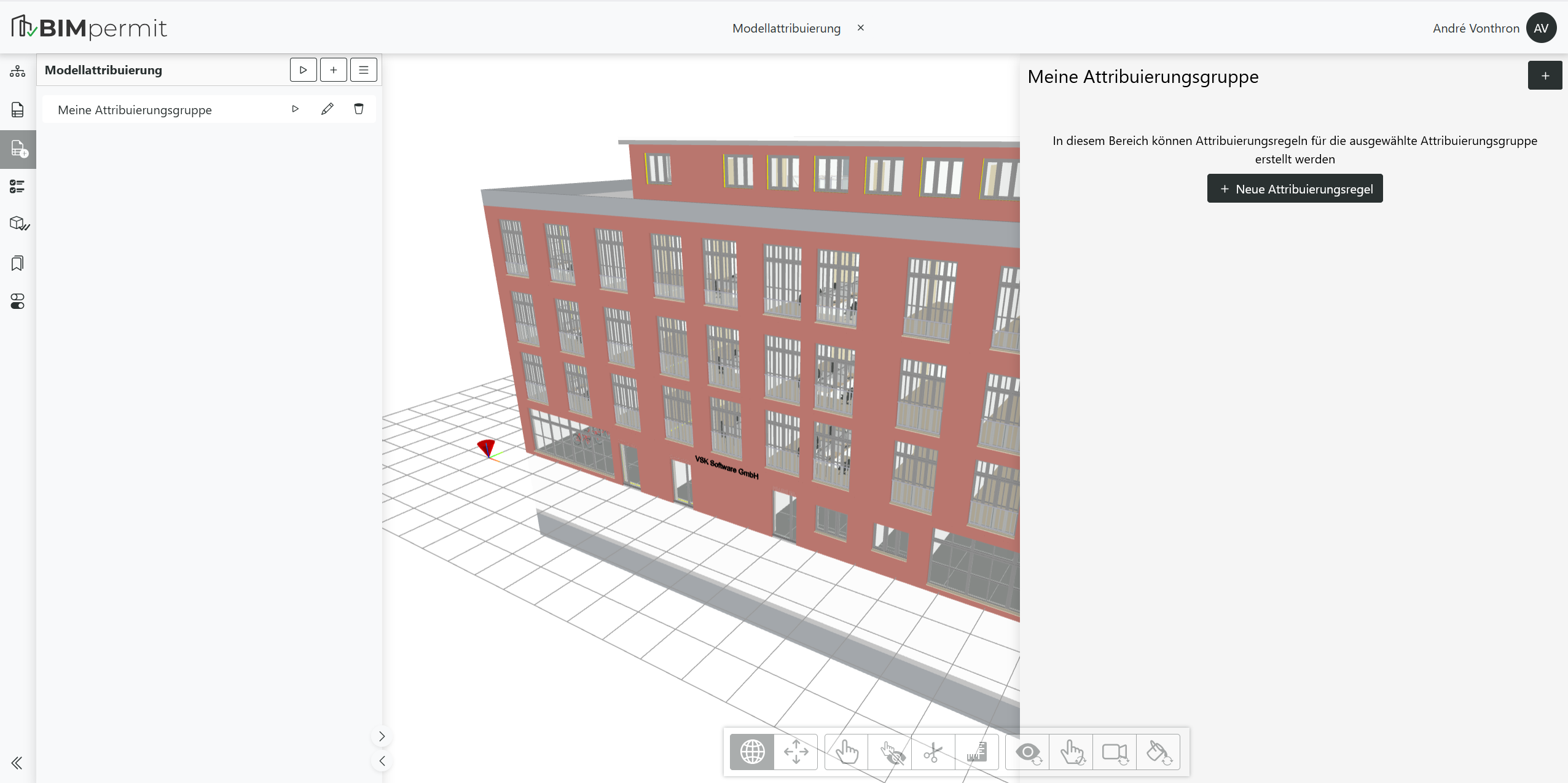
The created attribution group is listed on the left-hand side. If attribution rules have been defined, the group can be executed using the Play button or removed using the Bin icon.
Creating an Attribution Rule
Attribution rules can be created within attribution groups.
Attribution rules allow individual object properties to be assigned or rule-based mappings to be defined.
Clicking on an attribution group opens the corresponding area on the right-hand side for defining attribution rules.
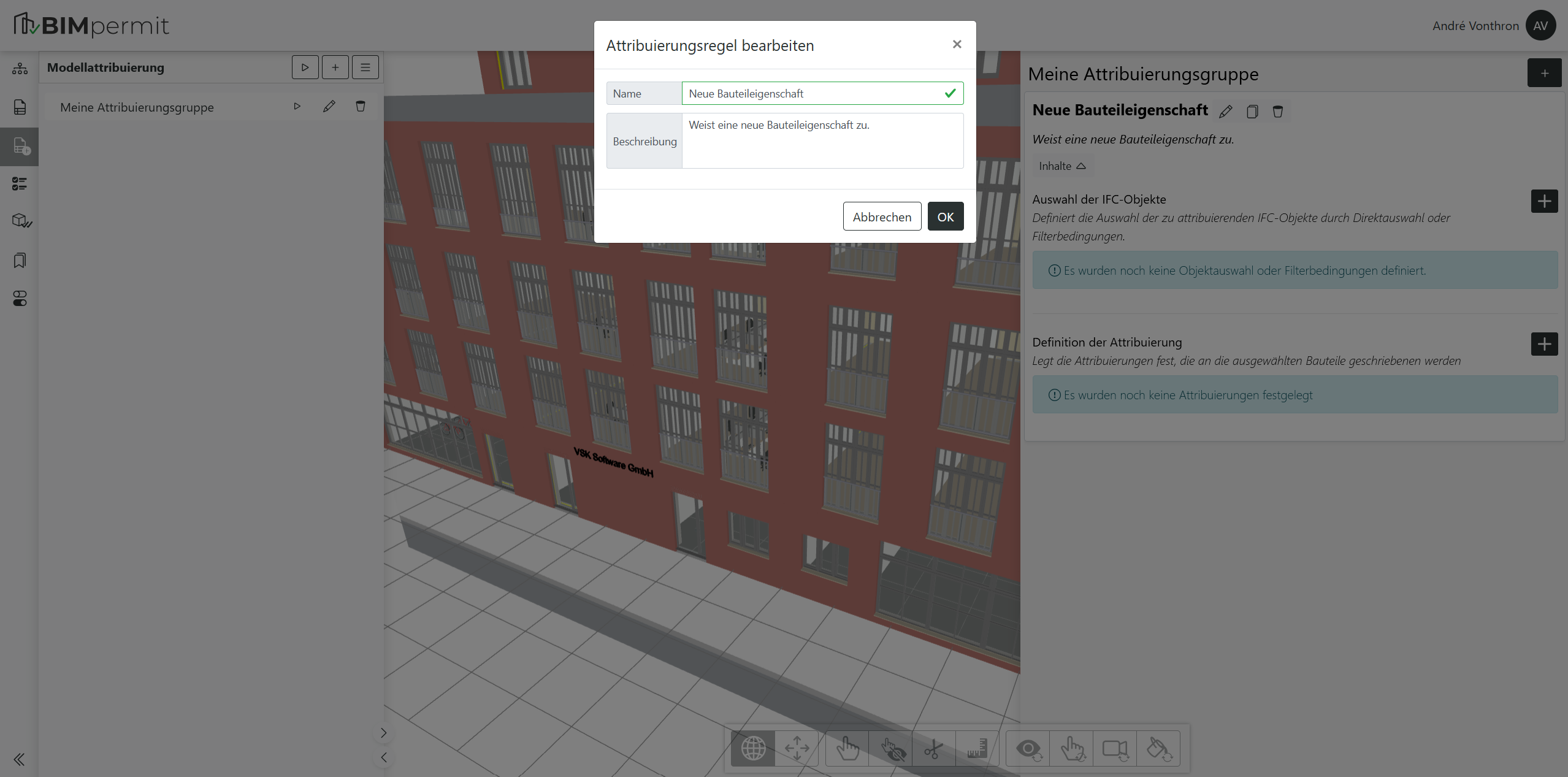
You can now create an attribution rule by clicking either the plus button or the "New Attribution Rule" button.
You will then be prompted to enter a name and, optionally, a description for the attribution rule.
The created attribution rule is displayed as an entry on the right-hand side.
Object Selection
The next step is to define the objects to which the attribution should be applied.
In the "IFC Object Selection" section, a condition can be added using the plus button.
A dialogue is opened in which one of three modes can be configured:
- Object Selection: Allows objects selected in the Viewer to be imported directly or specific IFC object GlobalIDs to be entered manually.
Clicking the "Add Selected Elements" button imports the GlobalIDs of all objects currently selected in the 3D view.
Alternatively, GlobalIDs can be entered manually, for example when assigning properties to individual objects or to objects without their own geometry, such as storeys.
<figure markdown>
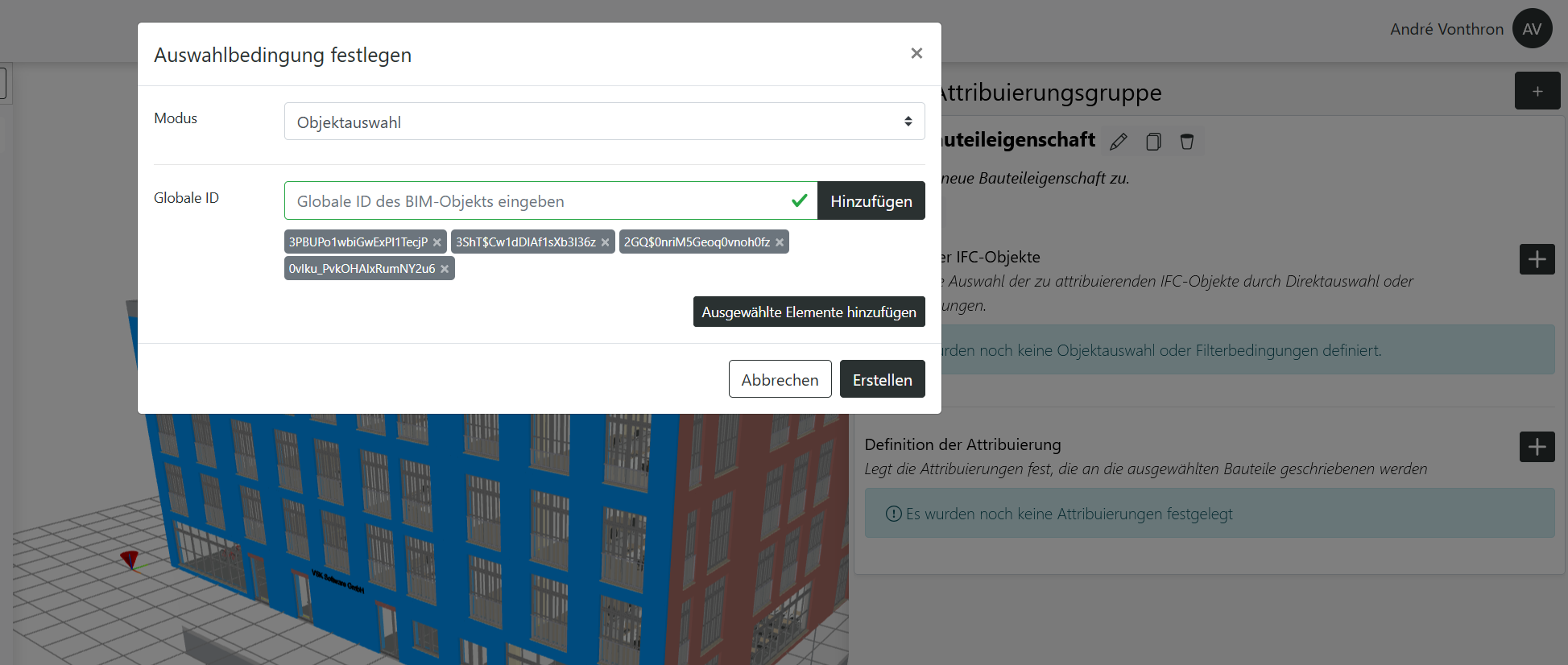
<figcaption>Object Selection mode</figcaption>
</figure>
- IFC Class: Allows objects to be selected by IFC class, for example to assign standard properties to specific object types.
In IFC Class mode, objects are selected by specifying an IFC class. This is done by entering the class in the text field and confirming it using the "Add" button.
If multiple classes are added, they are considered cumulatively (OR condition).
<figure markdown>
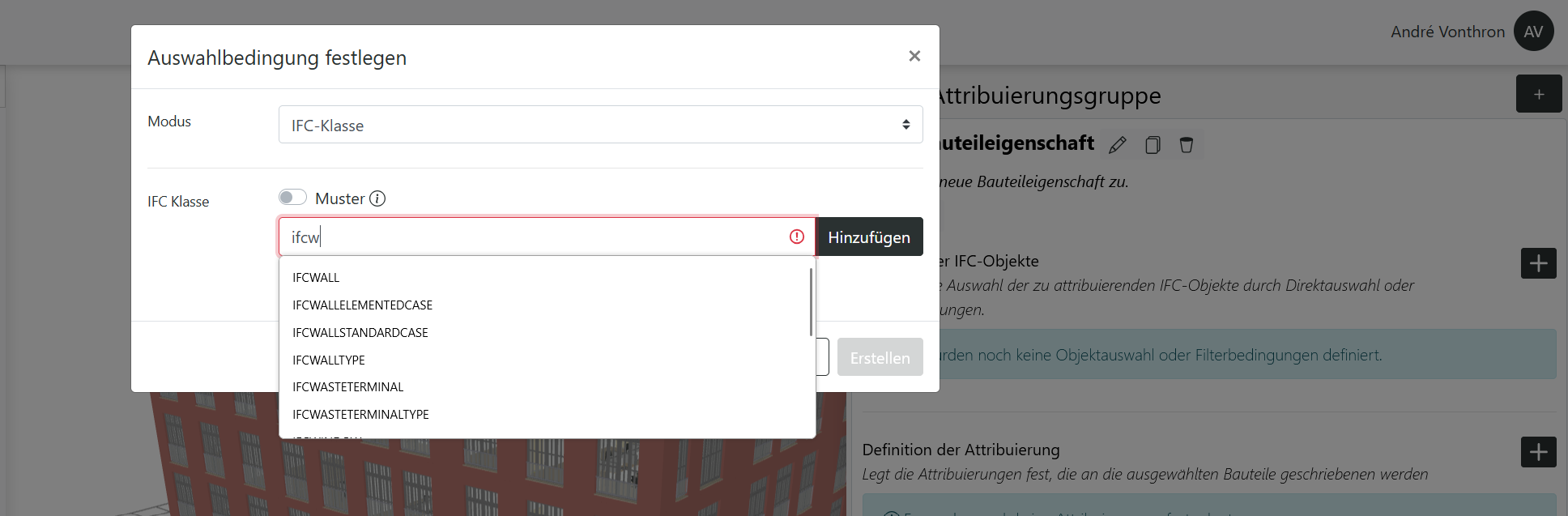
<figcaption>IFC Class mode</figcaption>
</figure>
- Property: Allows objects to be selected based on the value of an existing property.
In Property mode, filters can be defined based on property values.
<figure markdown>
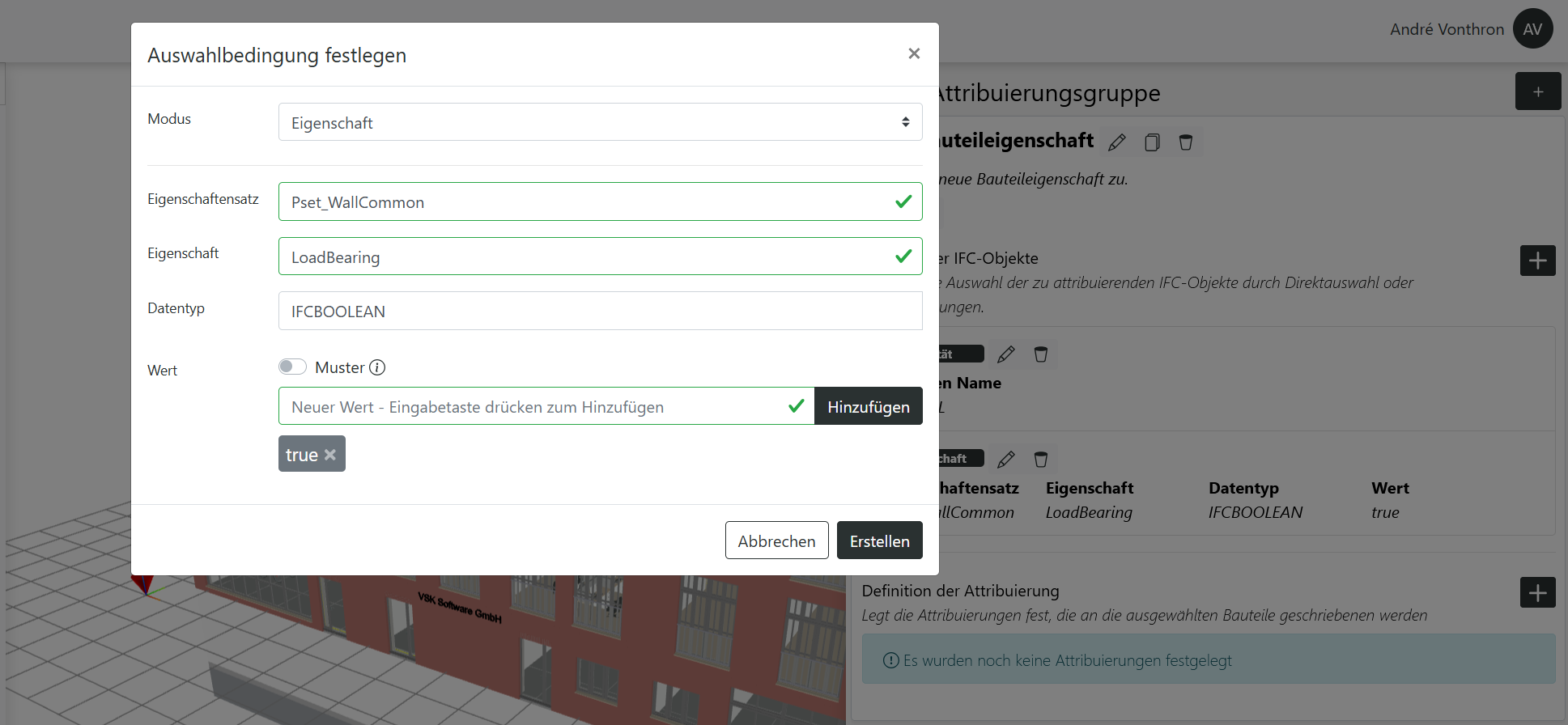
<figcaption>Property mode</figcaption>
</figure>
Multiple conditions can be defined in sequence, all of which must be satisfied simultaneously.
A useful combination is, for example, IFC Class and Property.
Defining the Property
In the second step, the specific property that should be added to the selected objects is defined.
In the "Attribution Definition" section, a property can be added using the plus button.
A dialogue is opened that requests the following property parameters:
- Property Set: The name of the IFC Property Set to which the property should be written. If the Property Set already exists, the property is added to it.
- Property: The name of the IFC property. If the property already exists, only the parameters listed below are updated.
- Data Type: The IFC data type of the value.
- Value: The value to be assigned. If multiple values are specified, an enumeration is created. Existing values or value lists are always overwritten.
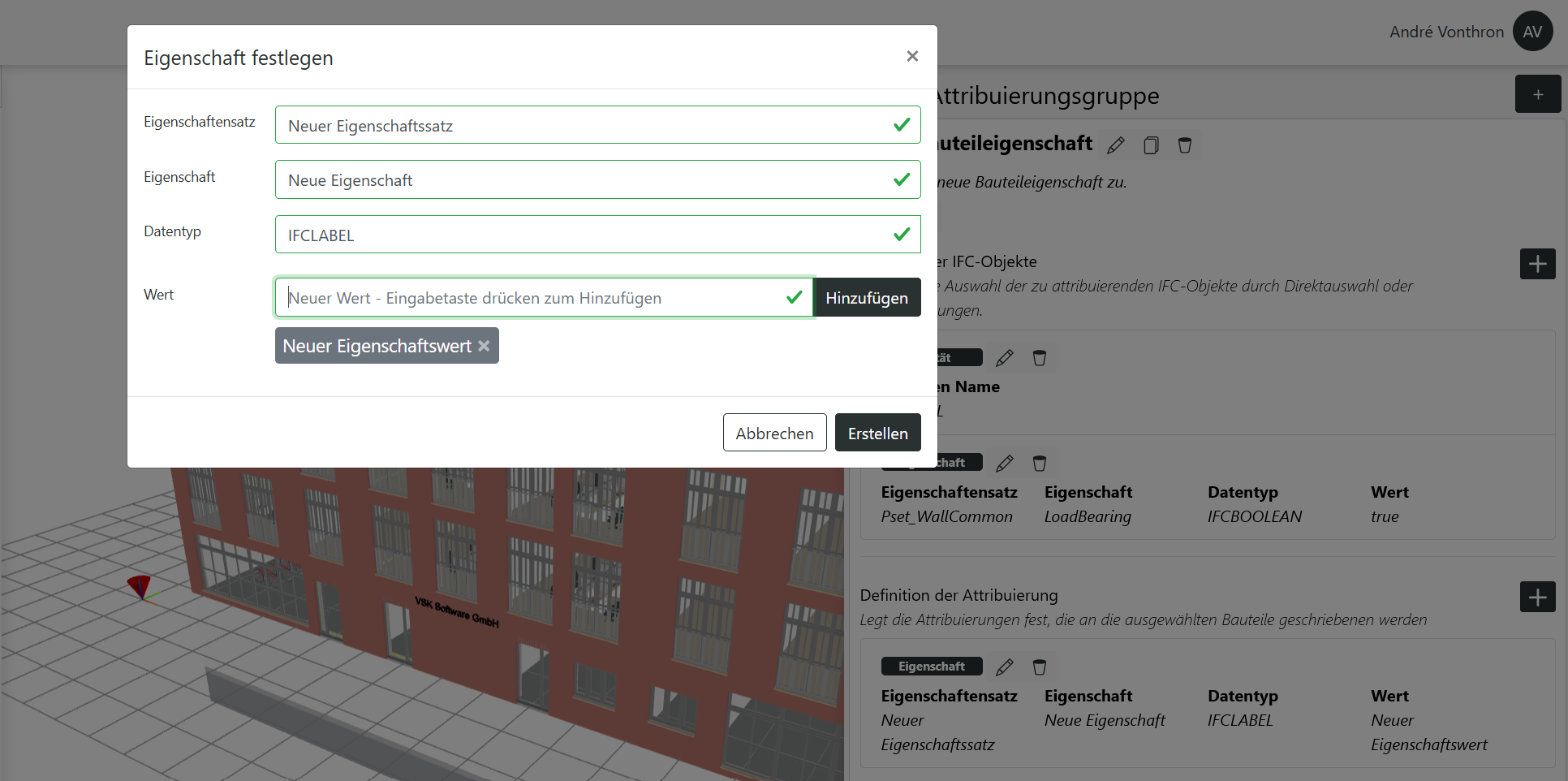
Multiple properties can be defined and assigned to the selected objects.
Executing Attribution Rules
Once the required attribution rules have been created, they can be applied to a model.
To do so, click the Play button in the list of an attribution group.
In the following dialogue, you will be prompted to select the model to which the attribution should be applied.
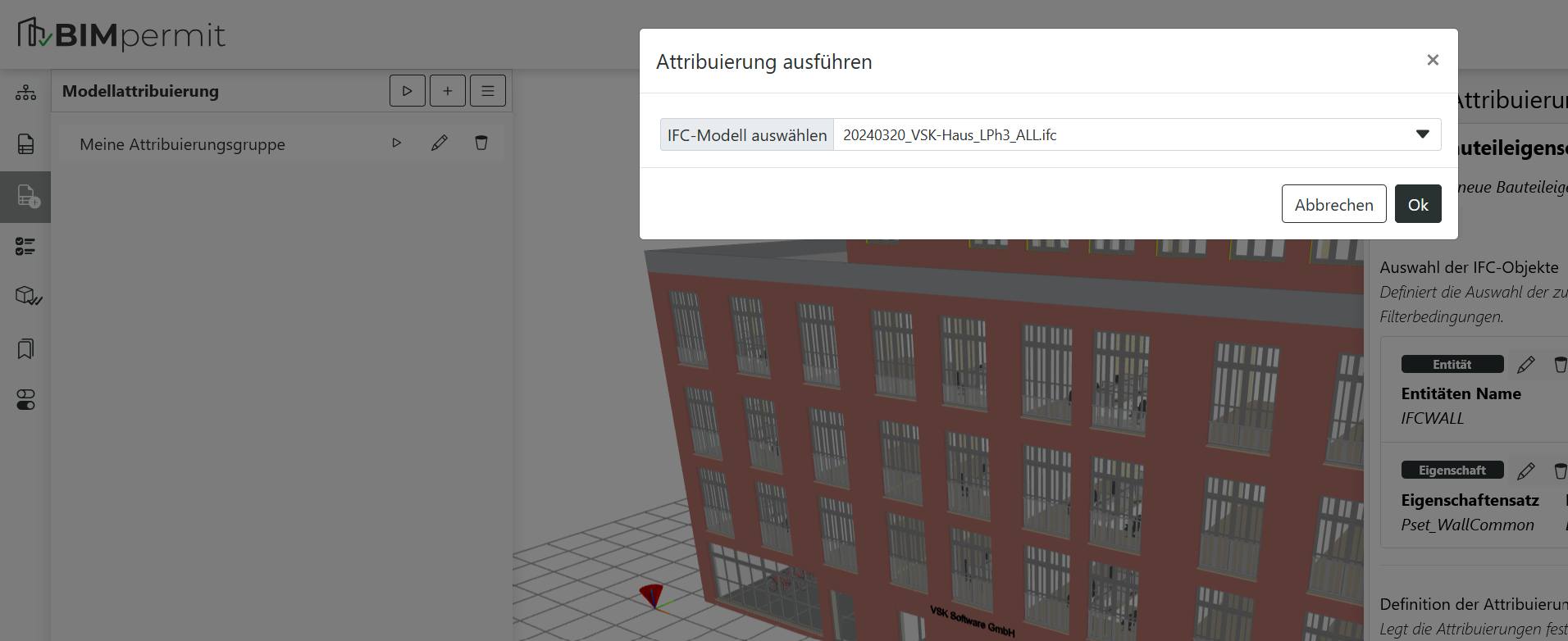
During execution, a loading indicator is displayed.
Once the properties have been successfully written to the model, a confirmation message is shown.
The result can subsequently be verified using the Properties view or by running a formal validation check.
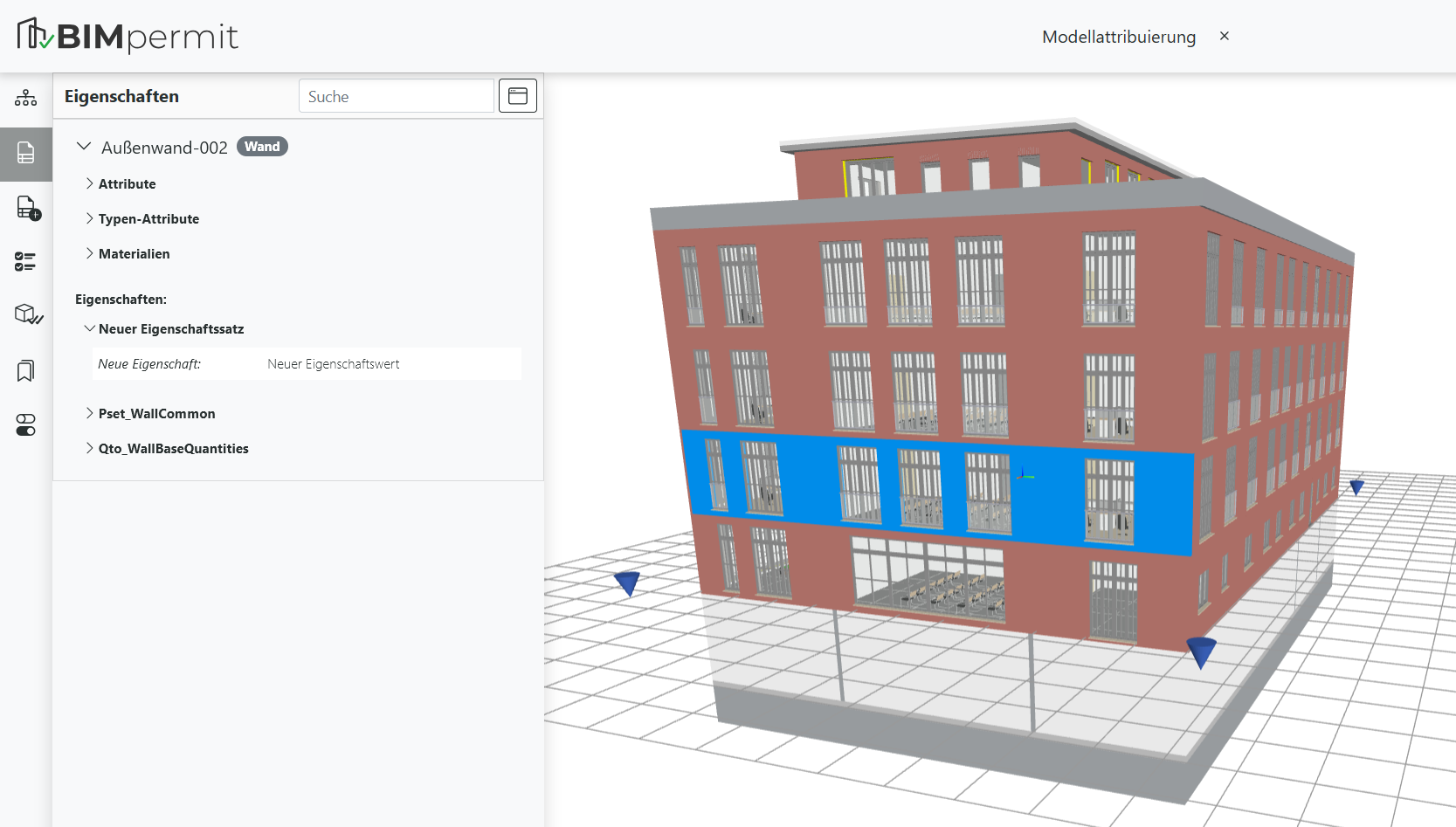
It is also possible to execute all attribution groups at once using the Play button in the header.
In this case, execution is limited to a single model.
Downloading the IFC File
IFC files are always overwritten during model attribution.
The updated IFC file can then be downloaded via the model's context menu in the Project Tree.